
AVD Architecture & Design
Plan the Azure environment around applications, user requirements, identity, infrastructure, security and licensing.
Your employees should be able to access the applications and systems they need without being tied to a single office computer.
Microsoft Azure Virtual Desktop delivers supported Windows desktops and applications through a cloud-hosted virtual desktop infrastructure.
From remote employees and hybrid teams to organisations running specialist business applications, Azure Virtual Desktop offers flexible options for delivering desktop experiences with centralised management.
IRON IT Group helps businesses assess, design, implement and manage suitable Azure Virtual Desktop environments with security, performance and cost visibility in mind.

Azure Virtual Desktop is Microsoft's desktop and application virtualisation service.
It allows businesses to deploy Windows session hosts in supported environments and provide authorised users with remote access to desktops or individual applications.
Employees can connect using compatible devices and supported access methods, including Windows App and browser-based experiences.
Unlike a conventional desktop PC, the processing for virtualised applications takes place on the session host rather than entirely on the employee's local device.
The business retains control over the configuration of its virtual machines, applications, operating systems, user profiles and supporting infrastructure.
A successful deployment considers more than the desktop itself. Networking, identity, application compatibility, Microsoft licensing, storage and user experience all influence the design.
Explore Virtual Desktop Consulting →Explore eight capabilities that can form part of an Azure Virtual Desktop engagement, from architecture and deployment to performance, security and ongoing management.
Plan the Azure environment around applications, user requirements, identity, infrastructure, security and licensing.
Configure appropriate host pools, session hosts, images, application groups and workspaces.
Explore pooled Windows 11 Enterprise multi-session environments that support eligible users sharing suitable host resources.
Publish supported business applications without requiring users to open a complete remote desktop.
Plan supported profile-container storage to preserve user settings and personalisation across suitable session hosts.
Review Microsoft Entra, access controls, session security, administrative permissions and workload protection.
Evaluate suitable capacity-management and scaling options to align available resources with workload requirements.
Explore session-host monitoring, user experience, infrastructure health, troubleshooting and maintenance requirements.
Azure Virtual Desktop supports different ways of delivering Windows desktops and applications. The right option depends on your users, software, performance requirements and budget.
Multiple eligible users can connect to session hosts within a shared host pool.
Windows 11 Enterprise multi-session can support concurrent users on the same virtual machine, where compatible licensing and applications are used.
Pooled environments may allow organisations to use infrastructure resources more efficiently.
Consider for: General business users with compatible applications.A personal host pool assigns a particular session host to an eligible user.
This can be appropriate where a user needs a more individually configured Windows environment or where application requirements differ from a typical pooled deployment.
Dedicated resources may increase infrastructure costs depending on usage and configuration.
Consider for: Specialist users and dedicated desktop requirements.RemoteApp allows supported individual Windows applications to be made available remotely.
Employees can access selected business software without working inside an entire published Windows desktop.
This may suit certain legacy or specialised applications, subject to compatibility and licensing.
Consider for: Specific applications that need centralised delivery.Azure Virtual Desktop combines Microsoft-managed platform services with virtual machines and other resources managed within your Azure environment.
Microsoft operates important service components such as connection brokering and gateways.
Your organisation remains responsible for the configuration and administration of its session hosts, applications, user profiles, identity permissions and relevant network resources.
When a user connects through a supported client, Azure Virtual Desktop helps establish the connection to an assigned desktop or application.
An appropriate architecture should also consider identity, networking, profile storage, monitoring, backup and business continuity.
A simplified view of the services involved in providing an Azure Virtual Desktop session.
These product screenshots come from Microsoft's Azure product pages and technical resources. They illustrate the administration and management capabilities associated with Azure Virtual Desktop.
Microsoft's Azure portal offers management tools for host pools, workspaces, application groups and supporting resources.
View Microsoft Azure Virtual Desktop →
Review relevant host-pool health, session-host availability and operational data through supported Azure monitoring experiences.
View Microsoft Documentation →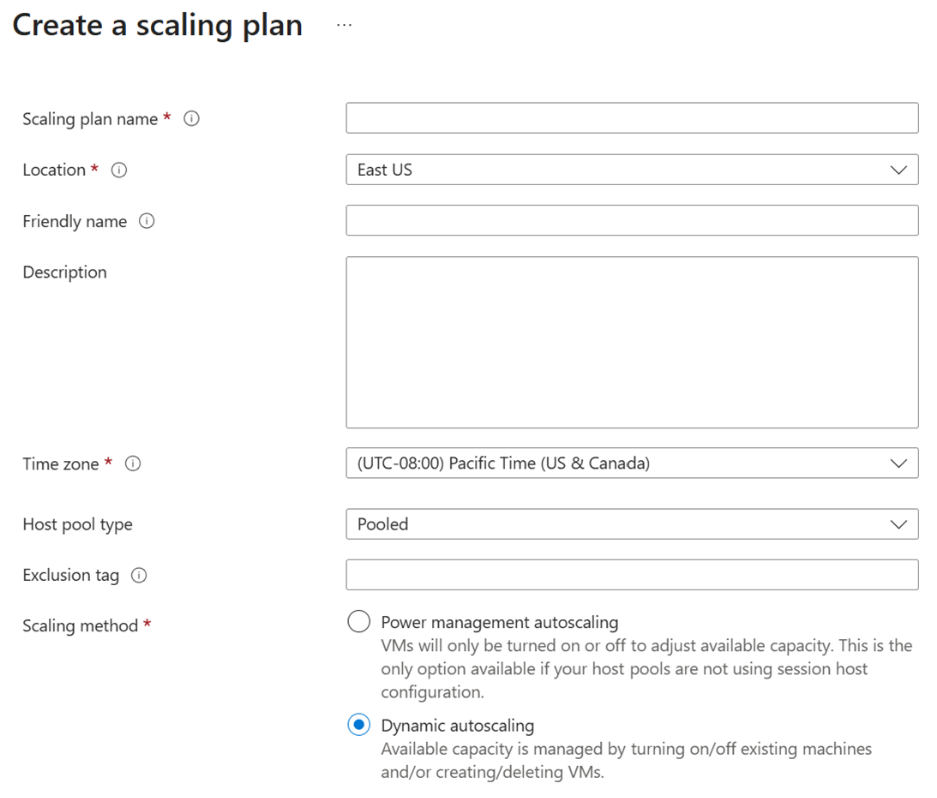
Explore Microsoft's scaling-plan features for managing relevant session host capacity and operating costs.
View Scaling Documentation →Screenshots illustrate Microsoft services and may show earlier interface versions. They do not represent a deployed IRON IT Group customer environment.
Employees expect their applications and personal settings to be available when they sign in.
In suitable pooled desktop environments, a user may connect to a different session host each time.
FSLogix profile containers can help provide a consistent user experience by storing supported user profile information separately from the session host operating system.
When configured appropriately, the profile container is made available during the user's session.
The design should include suitable profile storage, permissions, networking, performance and recovery arrangements.
Azure Virtual Desktop can support appropriate Microsoft 365 applications within eligible virtual desktop environments.
For example, Microsoft 365 Apps for enterprise can be configured for supported multi-user scenarios where the licensing and software requirements are met.
Application behaviour, user profiles, Teams media optimisation, OneDrive access and sign-in experiences all require consideration during deployment.
The environment should be tested against the organisation's applications and actual employee workloads before widespread rollout.
Virtual desktops can help centralise the delivery and administration of supported Windows applications.
However, the use of Azure Virtual Desktop does not automatically make an organisation's data or applications secure.
A suitable security approach should consider identity, authentication, device conditions, administrative privileges, operating system protection and access to sensitive data.
Depending on licensing and configuration, Microsoft Entra Conditional Access, Microsoft Defender, Microsoft Intune and other Azure security services may support the environment.
Organisations should also decide which local device features, including clipboard, USB, drive and printing redirection, are appropriate.
Azure Virtual Desktop uses supporting Azure infrastructure, including virtual machines, storage, networking and relevant management services.
The total cost depends on how the environment is configured and used.
For suitable pooled host pools, Windows 11 multi-session can allow multiple eligible users to share computing resources.
Scaling plans may help reduce consumption by adjusting session-host capacity or operating times according to configured schedules and workload conditions.
However, lower costs are not automatic. Resource sizing, user demand, storage performance and the chosen desktop model all affect spending.
Azure Virtual Desktop has separate considerations for user access rights and the Azure infrastructure delivering the desktops.
For internal Windows client desktop use, eligible subscriptions include certain Microsoft 365 plans such as Business Premium, E3, E5 and F3, along with qualifying Windows Enterprise and other licences.
Licence suitability depends on the actual users, workloads and applicable product terms.
Qualifying user access rights do not eliminate the charges for Azure resources used to deliver desktops and applications.
Virtual machines, storage, networking and related services are charged according to the relevant Azure pricing arrangements.
Windows Server desktop scenarios, external commercial application delivery and some specialist applications have different licensing requirements.
Microsoft 365 Apps and third-party application licensing should also be validated.
Licence eligibility and Azure prices can change. Verify current Microsoft terms and calculate the intended deployment before committing to a solution.
Different business requirements may benefit from a virtual desktop approach, provided the applications, performance, security and operating costs are appropriate.
Provide authorised employees with access to suitable business desktops and applications from supported remote locations.
Explore desktop provisioning for eligible project groups, contractors and other users with defined access requirements.
Deliver compatible line-of-business applications through suitable desktop or RemoteApp arrangements.
Offer a consistent application environment to employees across offices and other supported locations.
Explore standardised session host images, application deployment and supported management procedures.
Assess options for changing desktop capacity as employee numbers, business hours and workload needs evolve.
Virtual desktops require ongoing administration of the resources and software used to deliver business applications.
Microsoft manages the Azure Virtual Desktop service control plane, but organisations remain responsible for significant elements of their deployed session-host infrastructure.
An appropriate support arrangement should define operating system updates, application changes, resource management, user access, profile storage and troubleshooting.
Monitoring arrangements should also provide relevant visibility into session-host health, connection issues and the employee experience.
An Azure Virtual Desktop project should consider business needs, application compatibility, user access, architecture, performance and longer-term support.
Understand employee requirements, applications, existing desktops and business objectives.
Review licensing, compatibility, performance, security, costs and connectivity.
Plan session hosts, profiles, identity, storage, networking and management.
Implement the agreed solution and test applications, access and user experience.
Review performance, security, operating costs and support requirements.
Both products can deliver Windows experiences remotely, but they serve different deployment and management requirements.
Supports pooled and personal desktops, published applications, variable infrastructure sizing and organisation-managed Azure resources.
Useful when a business needs greater control over architecture, applications and capacity.
Provides individually assigned Windows Cloud PCs through Microsoft's supported subscription and management models.
Can suit organisations looking for a more standardised per-user cloud desktop experience.
Consider how many employees need access, what applications are required, whether multi-session matters, administrative complexity and the expected cost.
Neither product is automatically the best choice for every organisation.
Answers to common questions about Microsoft Azure Virtual Desktop, Windows App, multi-session, remote applications, security, licensing and support.
Azure Virtual Desktop is Microsoft's desktop and application virtualisation service. It allows organisations to deliver supported Windows desktop and application sessions through Azure infrastructure and supported access clients.
No. Azure Virtual Desktop is a flexible virtual desktop infrastructure service with pooled, personal and application-publishing options. Windows 365 provides individually assigned Cloud PCs through a different commercial and management model.
Yes. Authorised users can connect from supported devices and networks where the desktop environment, authentication and application access are configured appropriately.
Windows App is Microsoft's client for connecting to eligible remote Windows resources, including Azure Virtual Desktop and Windows 365. Supported features vary by device platform and service.
Yes. Windows App supports macOS for eligible remote desktop connections. Features, device redirection and the user experience depend on the supported client version and configuration.
Yes. Azure Virtual Desktop provides supported web access options. Browser functionality and available features may differ from native client applications.
A pooled host pool allows eligible users to connect to available session hosts within a shared collection. Appropriate multi-session configurations can allow multiple users to share a host virtual machine.
A personal desktop is assigned to a particular user, offering a dedicated session-host experience. It can be appropriate for specific performance, configuration or application requirements.
Windows 11 Enterprise multi-session allows multiple concurrent interactive Windows sessions on a supported virtual machine. Azure Virtual Desktop supports this model for eligible deployments and licensing.
RemoteApp delivers individual supported applications to users instead of requiring them to work within a complete remote Windows desktop.
Yes. Supported Microsoft 365 applications can be deployed in eligible Azure Virtual Desktop environments. Application licensing, activation, user profiles and performance should be assessed before deployment.
FSLogix provides profile-container technology for supported virtual desktop environments. It can help preserve user profile settings and personalisation when employees connect to different session hosts.
Azure Virtual Desktop requires suitable identity and authentication arrangements. Microsoft Entra ID is central to supported sign-in and resource access scenarios, while certain environments may also use Active Directory or other supported identity configurations.
Azure Virtual Desktop provides supported security capabilities, but organisations must still configure and maintain appropriate identity policies, operating system security, applications, network controls and data protection.
Yes. Suitable Microsoft Entra authentication and Conditional Access capabilities can support multifactor authentication and other access controls, subject to licensing and configuration.
Potentially. Compatibility depends on operating system support, software licensing, resource requirements, application dependencies and whether the vendor supports the intended virtual desktop model.
It may be a suitable replacement for certain RDS environments. The decision depends on applications, user requirements, networking, licensing, performance, security and the existing architecture.
Azure Virtual Desktop supports scaling plans for eligible host pools. Available capabilities and methods depend on the environment, configuration and Microsoft service requirements.
It can provide opportunities for resource efficiency, including pooled desktops and scaling. However, cost savings are not guaranteed. Total expenditure depends on infrastructure, storage, networking, user licensing and management.
Microsoft 365 Business Premium is among the eligible licences for certain internal Windows client access scenarios. However, Azure resources used to host desktops are billed separately, and licensing eligibility should be confirmed.
The practical number depends on virtual machine resources, applications, user activity and performance expectations. Capacity should be established through sizing and testing rather than assuming a fixed number of users per host.
It requires suitable network connectivity. Performance depends on latency, packet loss, application behaviour, graphics, media workloads and the employee's connection. An assessment should establish requirements for the specific environment.
Employees may lose access to their remote sessions until suitable connectivity returns. Business continuity planning should consider alternative connections, recovery arrangements and any critical operational dependencies.
Supported virtual machines, application data, profile storage and other components may have relevant backup and recovery options. The required protection depends on the architecture and business recovery objectives.
No. Microsoft manages the Azure Virtual Desktop service control plane, while the organisation remains responsible for its own session hosts, applications, users, data and relevant Azure resources. Responsibilities can be delegated to a provider by agreement.
An assessment can be scoped around host pools, applications, security, user profiles, networking, performance, resource usage and opportunities for optimisation.
Support availability, monitoring coverage, incident response targets and service levels must be defined in the agreed support contract. This page does not imply continuous human support.
Timescales depend on user numbers, application compatibility, identity configuration, licensing, networking, profile storage, security and testing requirements.
Costs depend on eligible licensing, virtual machine capacity, storage, networking, operating hours, administration and other resources. Contact IRON IT Group to discuss a suitable solution and cost assessment.
Explore services supporting Azure infrastructure, Microsoft 365 productivity and connected workplaces.
Explore Microsoft Azure infrastructure, networking, cloud security and resource management.
Explore Microsoft Azure →Explore Microsoft 365 applications, collaboration, licensing, security and administration.
Explore Microsoft 365 →Explore network performance, resilient internet connections and Microsoft cloud connectivity.
Explore Connectivity →Talk to IRON IT Group about Azure Virtual Desktop, Windows 11 multi-session, RemoteApp, FSLogix, virtual desktop security, Microsoft 365 integration and ongoing Azure management.